How to set a different wallpaper on each iPhone Duo screen
Updated 2026-11-11
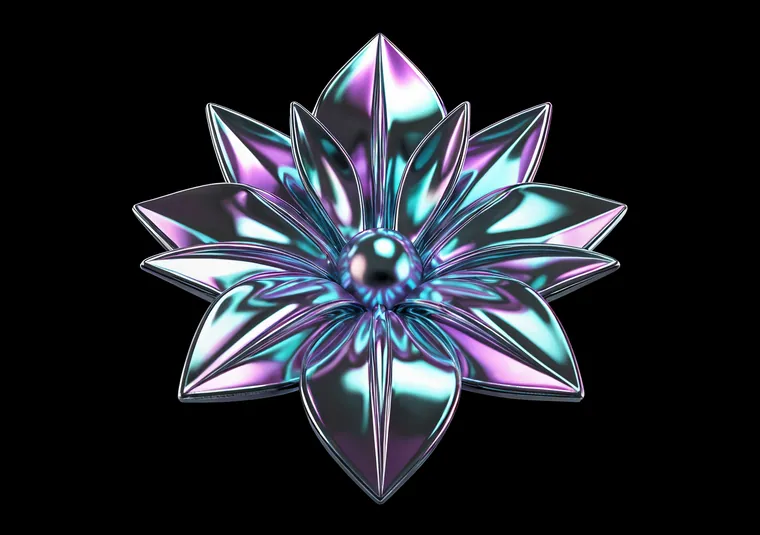
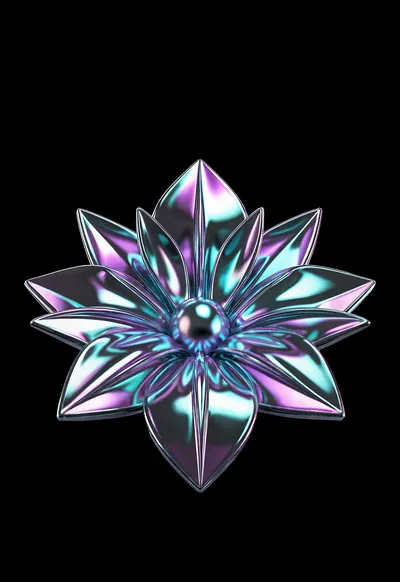
The best-looking setup is a pair: a wide image on the inner screen and a matching tall image on the cover, so opening the phone feels continuous. Here's how to set it up.
1. Get both files into Photos
Download the Home (2670×1878) and Lock (1398×2034) files. If Safari puts them in Files, open each one and tap Share → Save Image so it lands in Photos.
2. Set the cover screen
- Fold the phone closed.
- Open Settings → Wallpaper → Add New Wallpaper → Photos.
- Pick the tall Lock file. It is already the exact size, so don't zoom.
- Tap Add.
3. Set the inner screen
- Unfold the phone and hold it open like a book.
- Go to Settings → Wallpaper again and edit the Home Screen.
- Pick the wide Home file and tap Done.
Set each image while you're looking at the screen it belongs to. Menus can change between iOS versions, so if yours looks different, just follow the same order: cover first while folded, then inner while open.
If something looks off
The image is zoomed or soft: it was pinch-zoomed in the picker, or the wrong file was used. Reset it and pick the file that matches the screen's shape.
The Home Screen looks blurred: the wallpaper editor has a Home Screen blur option; turn it off.
The clock covers the subject: pick a set with a calm top, or use a depth effect set, where the subject is meant to rise in front of the clock.
All 383 UNFOLD sets come as a matched pair at these exact sizes. Browse the gallery.